 |
    |
|
| |
 The authority to edit account management information is limited to authorized American Modern Licensing & Contracts administrators.
The IC Setup Required task must be marked complete in order to activate the CH. This is required to "synch" the systems.
The Account Management page provides a place for you to finalize Contract Holder setups. The page consists of three sections. Each section must be completed prior to activation of the Contract Holder. Icons alert you to the completion status of setup tasks:
 - task requires completion.
 - task complete.
Sections include:
Background Check, where you indicate acceptability of background and credit.
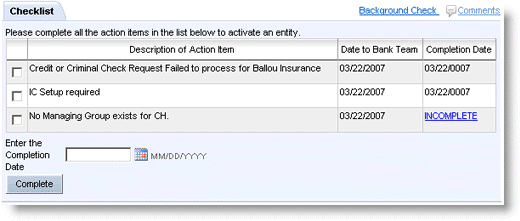
Checklist, where you indicate setup tasks (action items) are complete.
Manage Addenda Transactions, where you group and assign addenda transactions to (or remove transaction from) contracts.
Contract Processing, where you enter the contract details for the Contract Holder.
To complete the background/credit check:
Manually order the credit and background checks for the CH.
Click Background Check.
The Background Check page opens.
Follow the steps to acknowledge the background check.
Mark the action item complete.
As part of a Contract Holder setup, the completion of action items is indicated on the Checklist. IC Setup required should be the last task completed.
To mark an action item complete:
Select the related check box in the leftmost column
Enter the completion date.
Click Complete.
The page refreshes with the action item showing the completion icon () and the Completion Date.

The Manage Transaction Addenda function makes it possible to easily assign addenda to a contract when a new Contract Holder is created, or a current Contract Holder is modified in a way that generates transaction addenda.

To assign or remove transaction addenda:
Click Manage Addenda Transactions.
The Contract Addendum Processing page opens.
Follow the steps to manage addenda transactions.
The Contract Processing section must be completed for each contract.
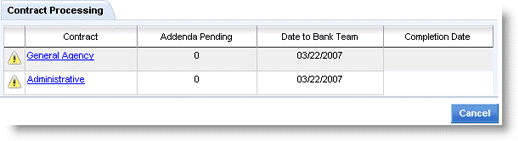
To complete contract processing:
Click the contract link in the Contract column.
The Contract Details page opens.
Follow the steps to complete the contract information.