 |
    |
|
| |
 The authority to edit contract details requires an American Modern Licensing & Contracts Profile Administrator security profile.
The Contract Detail page provides a place for you to complete or edit the contract details of the current Contract Holder. This page must be completed in order to activate a Contract Holder. Sections include:
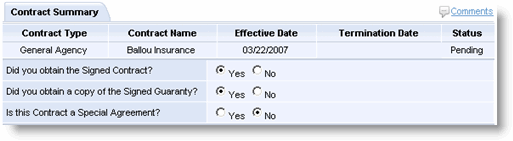
The Contract Summary section indicates answers to the initial questions as entered by the Sales Rep or Agency Contract Coordinator.
The Contract Processing section provides a place for you to enter/edit contract details prior to activating the Contract Holder.
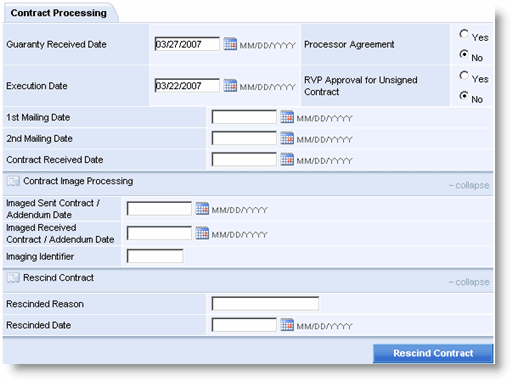
Contract Processing fields include:
|
Section |
Field |
Description |
|
Contract Processing |
Guaranty Received Date |
Date the Contract Holder signed the Guaranty. |
|
|
Execution Date |
Date the Contract Holder signed the contract. This field is required to activate the CH. |
|
|
1st Mailing Date |
Date the contract was first mailed to the Contract Holder when the contract kit is not utilized. |
|
|
2nd Mailing Date |
Date the contract is mailed to the Contract Holder after being amended. |
|
|
Contract Received Date |
Date the signed contract is received from the Contract Holder. This field is required to activate the CH |
|
|
Processor Agreement |
Indicates if the contract stipulates that the CH will do their own processing. |
|
|
RVP Approval for Unsigned Contract |
Indicates if a Regional Vice President (Sales) has approved an unsigned contract. |
|
Contract Image Processing |
Image Sent / Contract Addendum Date |
Date the contract image is sent to Filenet. |
|
|
Image Received/ Contract Addendum Date |
Date the contract image is |
|
|
Image Identifier |
Filenet reference; not utilized. |
|
Rescind Contract |
Rescind Reason |
Reason for rescinding the contract. |
|
|
Rescind Date |
Date contract rescinded. |
The Contract Addendum section lists addenda that have been assigned to the contract being viewed. Addenda can be edited, removed or added. As part of a CH termination, each addendum must have termination dates entered.
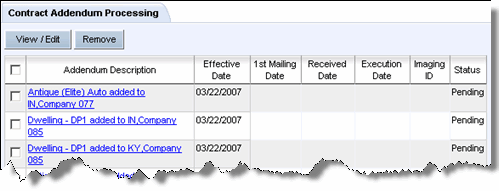
To complete addendum processing:
Select the check box to the left of the corresponding addendum.
Click View/Edit.
The Contract Addenda Details page opens.
Follow the steps to edit the addenda details.
To remove addenda:
Select the check box to the left of the corresponding addendum(-da). To select all addenda, select the topmost check box.
Click Remove.
The Contract Processing page refreshes with the addenda removed.
