 |
    |
|
| |
As described in the introduction to memos and diaries, you can enter "action items" notes or documentation to accompany a quote, policy, or receipt.
Diaries can be entered in:
The right-hand navigation section of the Policy Information tab of a policy open in Policy Maintenance.
The right-hand navigation section of an open quote.
The right-hand navigation section of a receipt.
To enter a diary:
Select the Diary tab.
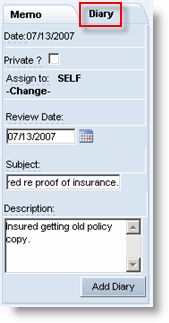
Select the Private? check box if the diary is not to be viewed by users below the current hierarchy level of the originator.
If Private is selected, the system does not display this diary to any user in a role below the creator in the hierarchy ; it is invisible to any child below the parent (creator). For example, if a Contract Holder marks the diary private, anyone in the American Modern home office or Contract Holder's office can see the diary but no one in a Sub-Producer's office can see it. If someone in the Sub-Producer's office marks a diary as private, everyone above in the hierarchy is able to view it
If Private is not selected, the diary can be viewed by anyone with access to the policy in the system.
Click -Select- to assign the diary.
The Diary Assignee list opens.
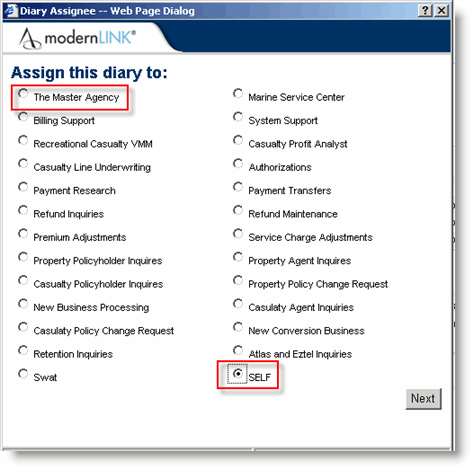
Click a button to select an assignee, then click Next. The organization to which you belong appears as an option at the top of the list for local group assignment, while SELF is the last option. Other entries in the list represent American Modern groups.
The diary is assigned to the selected assignee when the diary is added.
Enter a Review Date or select a date using the calendar control.
Enter a Subject and Description (up to 2,000 characters).
Click Add Diary.
The diary is attached to the quote, policy or receipt. A confirmation message appears atop the page. A diary is immediately placed in the assignee's Diaries list when added. By default the list is sorted by Review Date to prioritize responding.
To view memos or view/re-assign/close diaries, follow these steps.
